Skip to content
TinySharp
Tools Formats WordPress tools Image Optimizer Thumbnail Audit & Repair Chrome API Pricing Resources Log in Create free account →
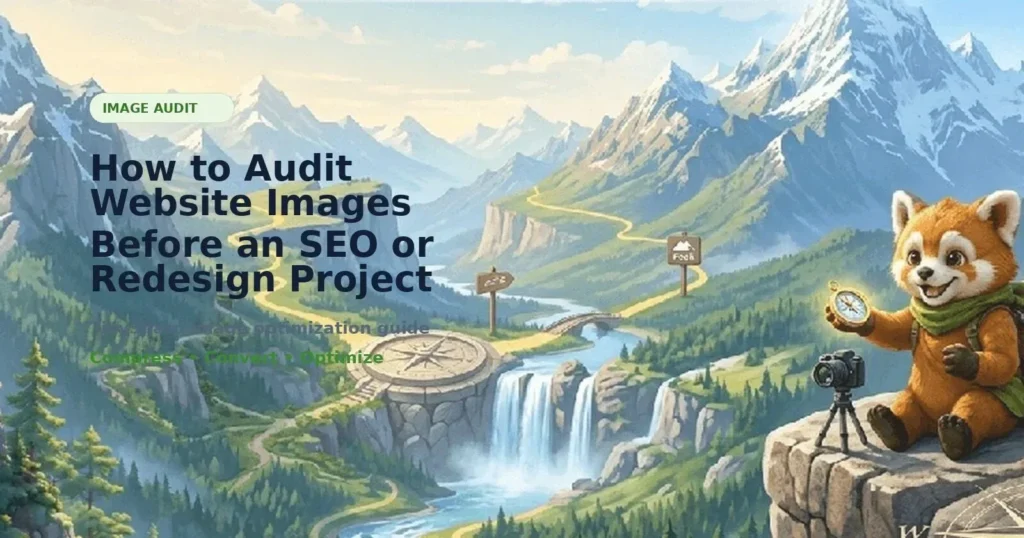
Illustration of a fox figure holding a compass beside a camera in a mountain landscape depicting a website image audit check…

TinySharp Blog

How to Audit Page Images With a Chrome Extension

Use a browser extension to scan page images, find missing alt text, oversized images, missing dimensions and WebP/AVIF opportunities.

A browser image audit helps you see what a real page is doing, not just what a CMS says it created.

What to check first

Start with visible image issues: missing alt text, oversized files, missing width and height attributes, hero images that are too large and formats that could be delivered as WebP or AVIF.

Why Chrome is useful

Chrome lets you inspect the live page and compare image URLs, displayed size and network weight. A browser extension can make this faster by collecting page image data in one place.

Connect the audit to optimization

Use the extension to find problems, then optimize local files or use the WordPress connector when the images belong to your own WordPress Media Library.

Try it: Install the TinySharp Chrome Extension.
Apply what you learned with the live TinySharp tools

Ready to try the workflow?

Apply what you learned with the live TinySharp tools

Use the related optimization and conversion pages to put these image workflow ideas into practice.